
How to Add a New Patient from Medicus
INRstar can use the patient details stored in Medicus to add a new patient.
Step 1: Open the Add Patient form
Navigate to the Patient page using the navigation bar, then select the Add Patient tab.
Step 2: Search Medicus
You can search for a patient in Medicus using either:
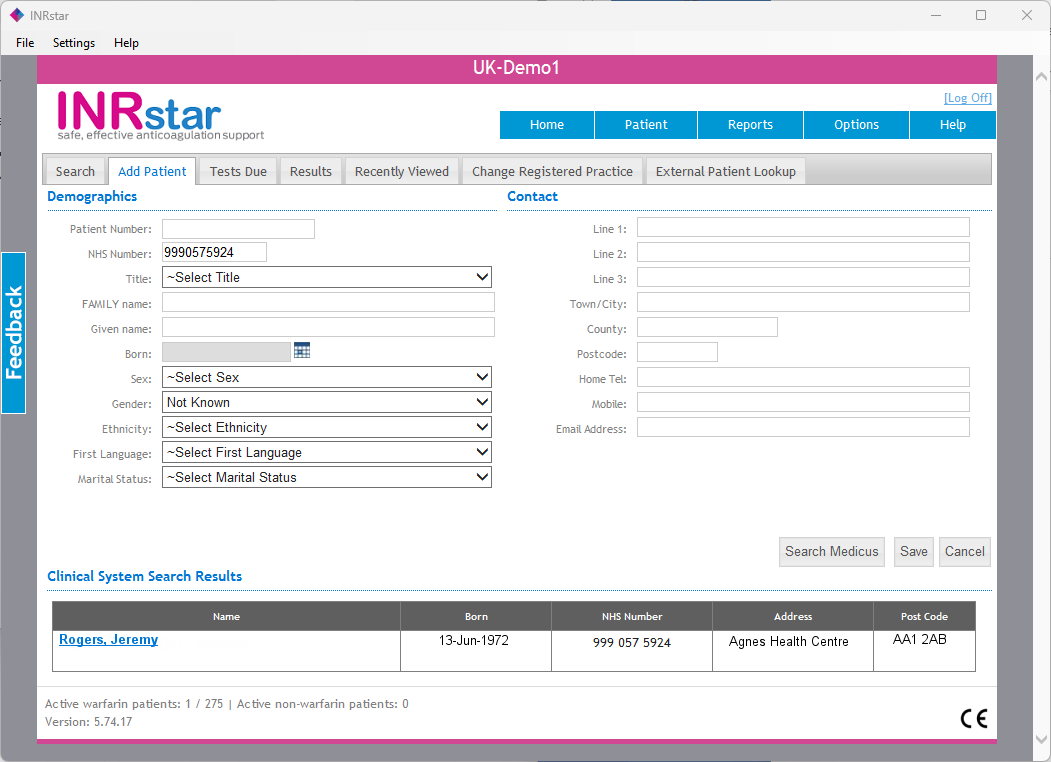
- The patient's NHS Number on its own; or
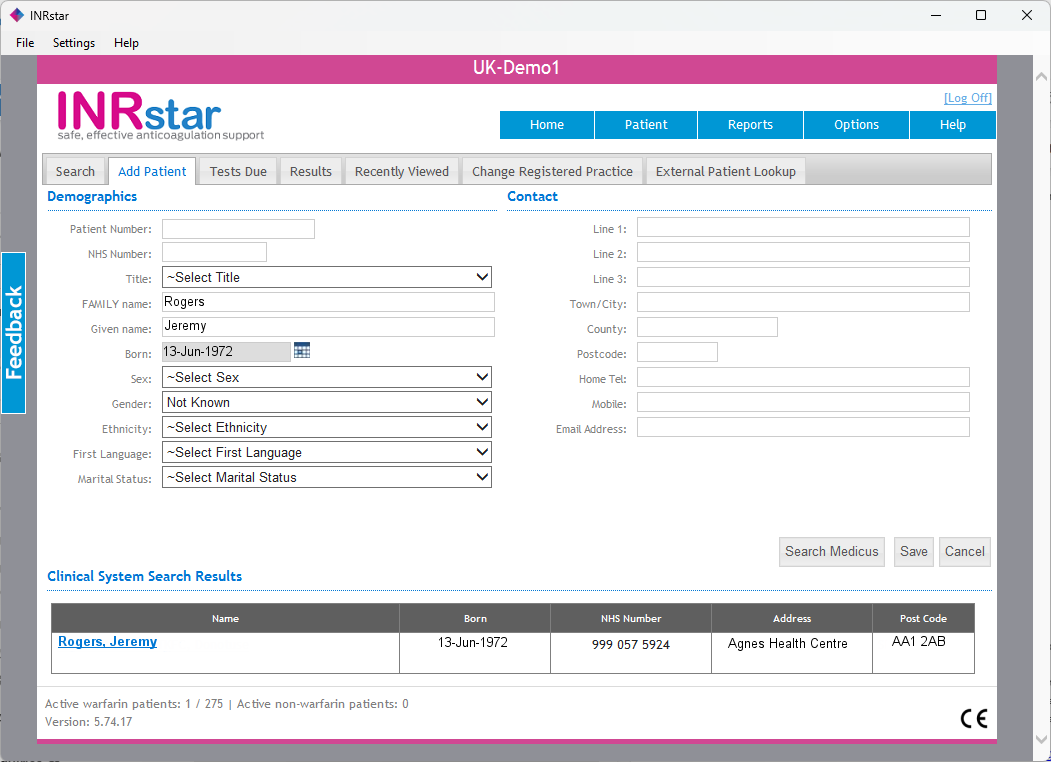
- The patient's Family Name, Given Name and date of birth together.
Enter one of the supported combinations and click Search Medicus.
Search by NHS number
Search by patient details
Enter all three fields: Family Name, Given Name and date of birth.
Step 3: Select the patient
Matching patients are displayed in the Clinical System Search Results section below the form. Check that the details identify the correct patient, then click the patient's name. The Add Patient form will be populated with the patient details held in Medicus.
Step 4: Check and save the patient
Check that all the patient details are correct and complete any required information that has not been supplied by Medicus. Click Save to add the patient to INRstar.
Multiple matching patients
If more than one patient in Medicus matches the search, Medicus does not return any patient details to INRstar for selection. Instead, INRstar displays a message explaining that multiple patients were found.
The example below shows the message displayed when multiple patients have the same NHS number.

Check the search details and the matching patient records in Medicus before trying the search again.
No matching patient found
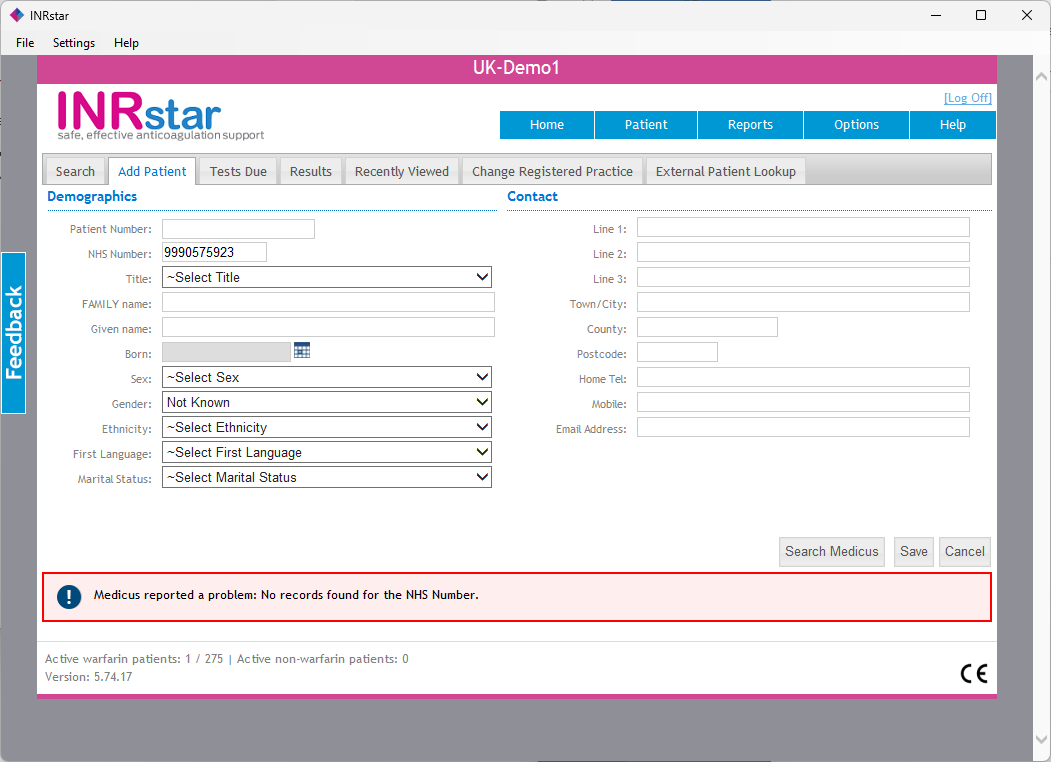
If Medicus cannot find a matching patient, INRstar displays a message below the form. Check that the search details are correct, then retry using one of the supported search combinations.
If you have any queries call us on (0)1209 710999, our team would love to help.